
Invisible Teleprompter for Screen Share
Read your script while Zoom, Teams, Meet and OBS share your desktop without it.
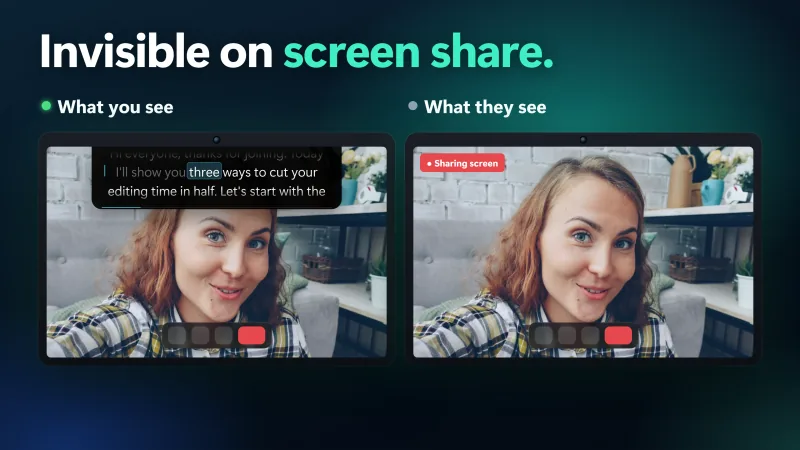
What you see
What the meeting sees
Hidden: the meeting sees your slides only
An illustration of the setting, not a screen recording. A staged picture of the real prompter is further down.
Free to start. Updated November 29, 2026
Short answer. MIRAY’s reader (Island, Float and Ghost) and its Studio window are marked so that Windows leaves them out of screen capture. Share your whole screen in Zoom, Teams or Meet and the meeting gets your slides, not your script. It is a Windows setting, not magic: a photo of your screen, a capture card and a remote desktop session all still show it, and the 60-second test tells you what your own setup does.
Windows leaves the window out of the picture
Your meeting app does not look at your monitor. It asks Windows for a picture of the screen. MIRAY marks its windows so Windows leaves them out of that picture, and still draws them on your monitor.
Four steps, all inside Windows
- MIRAY marks its window
- Meeting app asks for the screen
- Windows leaves that window out
- Viewers get the rest
The mark is WDA_EXCLUDEFROMCAPTURE. MIRAY sets it on the prompter and the Studio when hiding is on, which is the default, and you can switch it off in the Studio’s header or from the tray menu.
Nothing is installed in the meeting app and nothing is sent anywhere. MIRAY records no audio or video.
The setting, in its own words
Microsoft’s documentation describes the value this way: the window “is displayed only on a monitor. Everywhere else, the window does not appear at all.” It became a supported value in Windows 10 version 2004, and on earlier versions it behaves as monitor-only.
Microsoft also says plainly that this is not a security or DRM feature: for example, nothing stops someone photographing the screen. That is why this page has a test and a list of limits.
Pick your situation
The answer depends on what is looking at your screen. Choose one to see what to expect and why.
Your meeting sees the desktop without the prompter
MIRAY asks Windows to leave its window out of capture, and the meeting apps capture the screen the usual way. The Store listing names Zoom, Teams, Meet and OBS.
Run the 60-second test once for each app you present with; it takes a minute and removes the guessing.
Hidden from OBS, per the Store listing
The Store listing says MIRAY is hidden from screen sharing and recordings in Zoom, Teams, Meet and OBS. Capture software differs, so record ten seconds with your own settings and play it back.
MIRAY itself records no audio or video.
MIRAY’s own setting says screenshots skip it
The switch in the Studio reads: “On: Teams, Zoom, Meet, OBS and screenshots won’t see the prompter.” Try the screenshot tool you use.
It shows normally, and MIRAY tells you once
Hiding the window in a remote session would also hide it from you, so MIRAY pauses the setting there and shows a notice. Your script is readable, and so is it to whoever sees that remote screen.
If you present from a remote PC, plan on the built-in options below instead.
Older Windows draws a black box instead
The setting needs Windows 10 version 2004 or later. MIRAY’s own switch says older versions show a black box, and Microsoft says the setting then behaves as monitor-only.
Update Windows, or use the built-in options below.
A photograph shows everything on the screen
Microsoft is explicit that this Windows setting is not a security or copy-protection feature. Anything on your monitor can be photographed or filmed.
It captures what the monitor shows
Microsoft describes the window as displayed on a monitor and nowhere else. A card taking your monitor’s video signal gets that monitor picture. We have not run one, so test before relying on it.
A browser tab cannot hide from a share
The free teleprompter on the home page runs in a browser tab, which a whole-screen share shows. Hiding from screen share is a feature of the Windows app.
| What is looking | Result | Why |
|---|---|---|
| Zoom, Teams or Meet: whole-screen share | Hidden | Your meeting sees the desktop without the prompter |
| OBS or a screen recorder | Hidden, test yours | Hidden from OBS, per the Store listing |
| A screenshot | Hidden, test yours | MIRAY’s own setting says screenshots skip it |
| Remote Desktop or a similar remote session | Visible, by design | It shows normally, and MIRAY tells you once |
| Windows 10 older than version 2004 | Black box | Older Windows draws a black box instead |
| A phone or camera pointed at my screen | Visible | A photograph shows everything on the screen |
| A capture card on my display output | Expect visible | It captures what the monitor shows |
| The free web teleprompter | Visible | A browser tab cannot hide from a share |
“Hidden, test yours” means the claim comes from MIRAY’s own listing or settings and we have not run every tool. Nothing here is a promise about software we have not tried: the 60-second test is how you know.
Dock it, float it or make it click-through
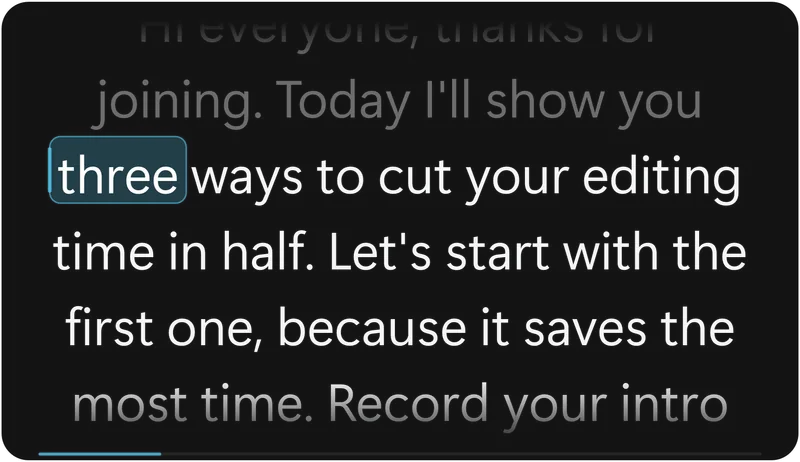
Hiding follows the reader in every layout, so pick the one that suits your screen. The three layouts are covered in full on the Island and Ghost page.
Float, or dock it under the webcam
Float puts the reader wherever you want it. Island docks it at the top of the screen, under your webcam, so you read while looking at the lens.
- Best for
- Presenting slides or a demo with a script beside them.
- Skip it if
- You share a single window: Zoom’s own window sharing already leaves your notes out.
- Adjust
- Ctrl+Alt+F switches between docked and floating.
Ghost
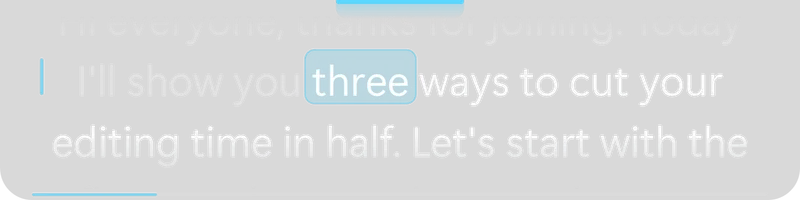
Ghost makes the reader see-through and click-through, so you can keep working in the window underneath. It is separate from hiding: Ghost changes how it looks to you, hiding changes what the share gets.
- Best for
- Reading over the slide or the app you are demonstrating.
- Skip it if
- You want to click or scroll the prompter itself.
- Adjust
- Ctrl+Alt+G turns Ghost on and off.
- Install MIRAY from the Microsoft Store: about 184 MB, Windows 10 version 2004 or later, and Windows 11. No account.
- Paste or import your script. Paste with Ctrl+Alt+V, or import a .txt, .md, .docx, .pdf or the speaker notes of a .pptx.
- Check the switch. In the Studio’s header, “Hide from screen share and recordings” is on by default. Its description reads “On: Teams, Zoom, Meet, OBS and screenshots won’t see the prompter.”
- Run the test below with the meeting app you actually use.
Test it in 60 seconds
Do not take any app’s word for it, ours included. Check what your audience actually gets.
- Start a test call alone in Zoom, Teams or Meet, or open OBS with a screen source.
- Open MIRAY with a script and press Start.
- Share your entire screen, not a single window.
- Look at the preview of your shared screen, or ask a friend. The prompter should be on your monitor and absent from the share. If you can record the call, play the recording back too.
If the prompter shows, check that you are on Windows 10 version 2004 or later and not in a remote session, then test again. Still showing? Tell us the app and version on the support page, which has the same test and the fixes.
Free options that need no app
If you only need to keep notes out of one share, you may not need MIRAY. These work in the meeting tools themselves.
Share one window
In Zoom, choose a single application window on the Screens tab instead of the whole screen. Keep your notes in a different window.
Share a portion of the screen
Zoom’s Advanced tab has Portion of Screen, shown with a green frame around what is shared. Put your notes outside the frame.
Notes on a second monitor
Share the screen with your slides and keep the script on the other one. It works in every meeting tool, costs nothing, and you look sideways instead of at the lens.
These are Zoom’s options as its help pages described them on November 17, 2026, confirmed in university IT guides on November 29, 2026. Menus and admin settings change, and an admin can switch off desktop sharing. MIRAY helps when you must share the whole screen, have one display, or want to read while looking at the camera.
Where hiding stops
Remote Desktop shows it
In a remote session MIRAY pauses hiding and tells you once, so it stays visible to you. It is visible on that remote screen too.
Windows 10 2004 or later
On older builds the setting does not work as intended and MIRAY’s own switch warns of a black box.
A camera still sees it
A phone or camera pointed at your monitor shows everything on it. Microsoft says the setting is not a security feature.
Test your own tools
The Store listing names Zoom, Teams, Meet and OBS. A capture card, an unusual recorder or a meeting app we have not run may behave differently.
Free reading is capped
Free reads about 300 words a session (about 2 minutes), with one script of your own. Hiding stays on after that; the length cap is what the upgrade removes.
Windows only
There is no Mac, Linux or phone app, and the free web teleprompter cannot hide from a share.
What is free, with the cap named
| Feature | Free | One-time upgrade |
|---|---|---|
| Hidden from screen share | Included, on by default | Included |
| Island, Float and Ghost | Included | Included |
| Classic and Voice reading | About 300 words a session (about 2 minutes of speech) | No length limit |
| Scripts | One of your own, plus the sample | Unlimited, in folders |
| Follow on your own script | 3 sessions a week | Every time |
Free: Classic and Voice scrolling for about 300 words a session (about 2 minutes), one script of your own, Island, Float and Ghost, hidden from screen share, every import format, and Follow 3 sessions a week. The upgrade is a one-time $19.99 (US price; local prices vary), no subscription: unlimited length, unlimited scripts, Follow every time. The buy page has the full comparison.
For your own talks, not for getting around rules
Use MIRAY for your own presentations, demos, lectures and videos: a script you wrote, in front of an audience that expects you to be prepared. If a meeting, interview or assessment has a no-notes rule, follow it. MIRAY is not built or sold to get around one.
Hidden-from-screen-share questions
What is an invisible teleprompter?
A teleprompter window that screen capture leaves out. You see your script on your own monitor, while Zoom, Teams, Meet or OBS get the desktop without it. On Windows it uses a display setting called WDA_EXCLUDEFROMCAPTURE, supported since Windows 10 version 2004.
Will the audience see my script if I share my entire screen?
Not if the window is excluded from capture, which MIRAY does by default on Windows 10 version 2004 or later. A normal notes window would show. Do not take our word for it: the 60-second test on this page shows you exactly what your meeting app gets.
Is hiding from screen share free?
Yes. Hiding is free and on by default. What is capped is how much script the free version reads: about 300 words a session, about 2 minutes of speech. The one-time upgrade removes that cap.
Does it stay hidden over Remote Desktop?
No, and on purpose. In a remote session Windows would also hide the window from the person you are connected to, so MIRAY shows it normally and tells you once. Test the exact setup you will present from.
What about recordings, OBS and capture cards?
The Store listing says MIRAY is hidden from screen sharing and recordings in Zoom, Teams, Meet and OBS, and the app’s own setting says the same for screenshots. Test your own recorder. A capture card that takes your monitor’s video signal sees what the monitor shows, so expect the prompter to appear there.
Can someone see it with a phone or a camera pointed at my screen?
Yes. Microsoft says the Windows setting is not a security or copy-protection feature, and a photograph of the screen shows everything on it.
Can I use it in an interview or an assessment?
Use it for your own talks, demos, lectures and videos, and for your own prepared notes where notes are allowed. If a meeting, interview or assessment has a no-notes rule, follow it. MIRAY is not made to get around one.
None of this worked on my PC. What now?
Check that you run Windows 10 version 2004 or later and are not in a remote session, then repeat the test. If it still shows, tell us the meeting app and its version through the support page. Meanwhile, share one window or a portion of the screen, or keep your notes on a second monitor.
See your script. Show them the slides.
Install MIRAY, paste a script and run the 60-second test with your meeting app. Free to start, no account.
Windows 10 version 2004 or later, and Windows 11. About 184 MB. The web version cannot hide from a share.
- Island and Ghost modeUnder your webcam, or see-through.
- Voice and FollowA script that moves when you speak.
- Import and presetsWord, PDF and PowerPoint notes.
- Zoom presentationsRead while you present.
- Support: the capture testThe test and the fixes in one place.
- BuyFree and the one-time upgrade, side by side.