
Notch Teleprompter for Windows
Read right under your webcam, float it anywhere, or let your clicks pass straight through.
Slide clicks:
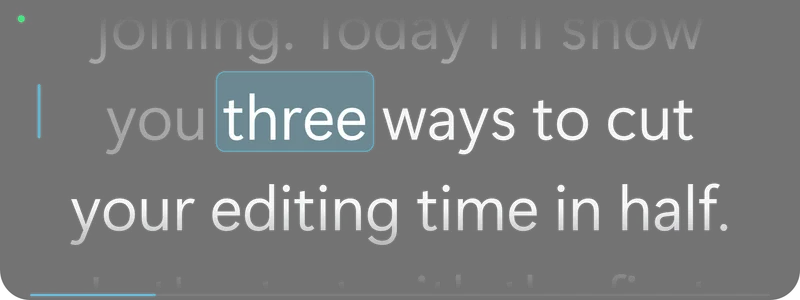
Island: docked at the top centre, under the webcam
An illustration of the three layouts, not a screen recording.
Real pictures of the prompter are further down. Try clicking Next slide in each layout.
Free to start.
Short answer. Notch teleprompters keep your script in the camera cutout of a MacBook, so you read close to the lens. Windows laptops have no notch, so MIRAY’s Island docks the script at the top centre of the screen, which is under the webcam on most laptops. Drag it off the top and it floats. Press Ctrl+Alt+G and it turns see-through, and your clicks pass through it to the app underneath. All three are free.
Same prompter, three places to put it
Island and Float are where the window sits. Ghost is a switch that works in either one. Sizes below are in device-independent pixels, the units Windows scales for your display.
| Where it sits | What to know | |
|---|---|---|
| Island | Top centre of the screen, under the webcam | Opens docked, 440 wide by 124 tall. You can set 320 to 900 wide and 90 to 320 tall. |
| Float | Anywhere on any monitor | Opens 520 by 300 and remembers where you left it, per monitor. Drop it back near the top centre and it docks again. |
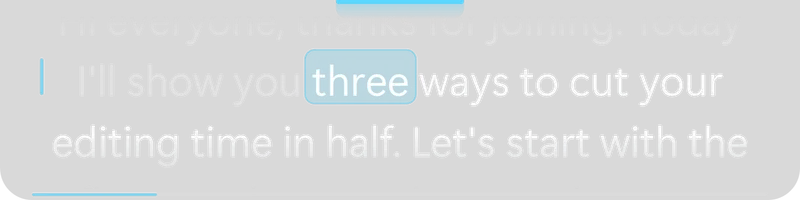
| Ghost | Wherever the prompter already is | The window background fades to a faint tint (15 percent), the text stays solid, and clicks pass through. Hold Ctrl and Alt over it to use its controls. |
Read at the lens, not at your slides
Looking at a script in the middle of the screen makes your eyes drift away from the camera. The Island puts the lines at the top centre, close to the lens on most laptops, so you read while looking nearly at your audience.
- Start MIRAY and press Start. The prompter opens docked at the top centre of the screen. Use Ctrl+Alt+Space to play and pause.
- Size it to your script. Drag its edges to anything from 320 to 900 wide and 90 to 320 tall, or let it keep the default.
- Set the glass. Opacity runs from 30 to 100 percent and opens at 92. Text size runs from 16 to 72.
- Undock when you need to. Drag it down, or press Ctrl+Alt+F. Drop it near the top centre and it docks again.
When the top centre is not where you look
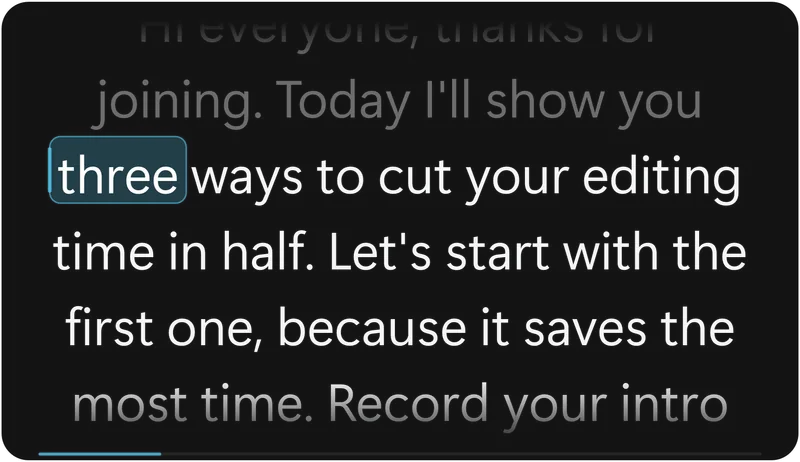
Float
Float is the same prompter, free to move. Park it beside a slide, next to an off-centre webcam, or on a second monitor. MIRAY remembers the spot for each monitor.
- Best for
- Off-centre webcams, slides that fill the top, a script on a second display.
- Skip it if
- Your webcam is at the top centre and you read at the lens: the Island is already there.
- Adjust
- Ctrl+Alt+F docks or floats. Default size 520 by 300, and you can drag the size.
Ghost
Ghost fades the prompter’s background to a 15 percent tint and lets mouse clicks fall straight through it, so you can keep clicking, scrolling and typing in the app underneath while you read. It applies while the prompter is live and ends when it is hidden.
- Best for
- Demonstrating software, walking through a document, or reading over a calm slide.
- Skip it if
- The background is busy or very bright: the text stays solid, but it competes with whatever sits behind it.
- Adjust
- Ctrl+Alt+G turns it on and off. Hold Ctrl+Alt over the prompter to use its controls.
Pick your situation
The right layout depends on where your webcam is and what you present. Choose one to see what to use and why.
Dock it under the webcam
The Island sits at the top centre of the screen, close to the lens on most laptops, so your eyes stay near the camera while you read. It opens docked by default.
Make it wider or taller if you want more lines: 320 to 900 wide, 90 to 320 tall.
Island if the webcam is top centre, Float if not
The Island docks to the top centre of the screen, not to the camera itself. If your webcam is clipped to the middle of the top edge, the Island lines up. If it sits off to one side, press Ctrl+Alt+F, float the prompter and drag it beside the lens.
Float it beside the slide, or Ghost it over a calm one
Float lets you park the script where it does not cover what you present, and it remembers the spot for each monitor. If the slide has a quiet area, Ghost lets you read over it and keep clicking through.
Hiding from a share is a separate setting. Run the 60-second test in the meeting app you use.
Ghost passes your clicks through
With Ghost on, the prompter’s background fades to a faint tint and mouse clicks reach the app underneath, so you can keep working while you read. Hold Ctrl and Alt over the prompter when you need its buttons.
Park it near the camera and test the recording
Put the prompter where you want your eyes to be, near the lens. MIRAY asks Windows to leave it out of screen capture, and your recorder decides whether that holds, so record ten seconds and play it back. MIRAY itself records no audio or video.
Float it large
Drag the prompter to the other display and resize it. The default floating size is 520 by 300; text size runs from 16 to 72, and Mirror flips the text if you read off glass.
MIRAY does not run on a Mac
MIRAY is a Windows app. The idea of a notch teleprompter began on Macs, and Mac apps exist for it. The free web teleprompter on our home page runs in a Mac browser, as a normal page.
There is no phone or tablet app
The free web teleprompter works in a phone browser, as a page. Island, Float and Ghost are features of the Windows app.
| Situation | Use | Why |
|---|---|---|
| A video call on my laptop | Island | Dock it under the webcam |
| An external webcam on my monitor | Island or Float | Island if the webcam is top centre, Float if not |
| Presenting slides | Float | Float it beside the slide, or Ghost it over a calm one |
| Demonstrating software I need to click | Ghost | Ghost passes your clicks through |
| Recording a tutorial | Float or Ghost | Park it near the camera and test the recording |
| A big script on a second monitor | Float | Float it large |
| A MacBook with a notch | Windows only | MIRAY does not run on a Mac |
| A phone or tablet | Not in the app | There is no phone or tablet app |
Switch without leaving your slides
These shortcuts are global, so they work while another app has focus. They are the defaults and can be rebound in the settings.
| Press | What it does |
|---|---|
| Ctrl+Alt+F | Dock to the top centre, or float |
| Ctrl+Alt+G | Ghost on or off |
| Hold Ctrl+Alt over it | Use the controls while Ghost is on |
| Ctrl+Alt+Space | Play or pause |
| Ctrl+Alt+D | Open MIRAY |
Ghost is also in the tray menu and the command palette (“Ghost mode: click-through prompter”).
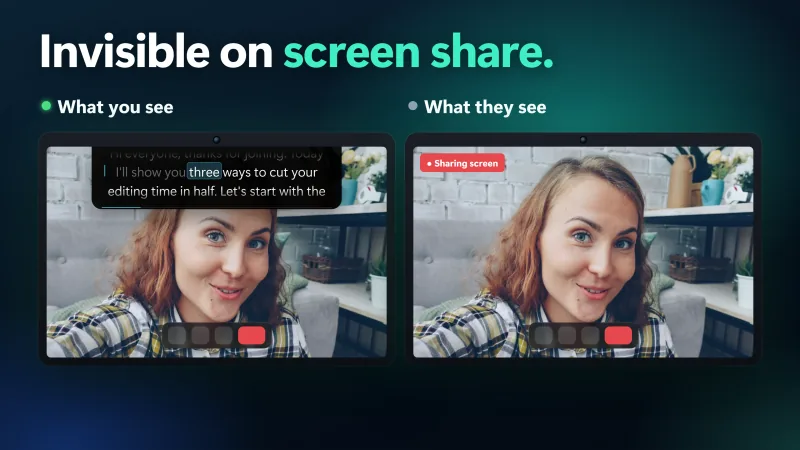
On a call, the prompter is left out of a screen share by default in every layout. See what it hides, where it stops, and the 60-second test.
Where Island and Ghost stop
Top centre, not the lens
The Island docks to the top centre of the screen. It does not find your camera, so an off-centre or external webcam means using Float.
Windows only
There is no Mac, Linux or phone app. The free web teleprompter runs in a browser tab but cannot dock, float over other windows or click through.
Ghost depends on the background
The background is a faint tint and the text is solid. Over a busy or bright window, the text is harder to read, so try Ghost on the slide you will use.
Ghost works while it is live
The click-through state applies while the prompter is reading. When you hide the prompter, Ghost ends with it.
A shortcut can be taken
If another app already uses Ctrl+Alt+F or G, MIRAY tells you the shortcut is taken. Rebind it in the settings.
Free reading is capped
Free reads about 300 words a session (about 2 minutes), with one script of your own. The layouts stay free after that; the length cap is what the upgrade removes.
What is free, with the cap named
| Feature | Free | One-time upgrade |
|---|---|---|
| Island, Float and Ghost | Included | Included |
| Hidden from screen share | Included, on by default | Included |
| Classic and Voice reading | About 300 words a session (about 2 minutes of speech) | No length limit |
| Scripts | One of your own, plus the sample | Unlimited, in folders |
| Follow on your own script | 3 sessions a week | Every time |
Free: Classic and Voice scrolling for about 300 words a session (about 2 minutes), one script of your own, Island, Float and Ghost, hidden from screen share, every import format, and Follow 3 sessions a week. The upgrade is a one-time $19.99 (US price; local prices vary), no subscription: unlimited length, unlimited scripts, Follow every time. The buy page has the full comparison.
Island and Ghost mode questions
Is there a notch teleprompter for Windows?
Yes: MIRAY’s Island. Notch teleprompters were made for the camera cutout on MacBooks, and Windows laptops have no notch, so the Island docks to the top-centre of your screen, which is where most laptop webcams sit. It is free.
What is the difference between Island, Float and Ghost?
Island is docked at the top centre. Float is the same prompter, dragged anywhere on the screen. Ghost is a switch you can turn on in either: the prompter turns see-through and your clicks pass through it to the app underneath.
How do I switch between them?
Press Ctrl+Alt+F to dock or float, and Ctrl+Alt+G to turn Ghost on or off. You can also drag the prompter off the top to float it and drop it back near the top centre to dock it again. Both shortcuts can be changed in the settings.
Can I still use the prompter’s buttons in Ghost mode?
Yes. Hold Ctrl and Alt while the pointer is over the prompter and it becomes solid for as long as you hold them, so the controls work. Let go and clicks pass through again.
Does the Island sit exactly under my webcam?
It sits at the top centre of the screen. On most laptops that is directly under the webcam. An external webcam on the side of a monitor, or a lid camera that is off-centre, will not line up, so use Float and drag it next to the lens.
Are Island, Float and Ghost free?
Yes. All three layouts are free. What the free version caps is how much script it reads: about 300 words a session, about 2 minutes of speech, with one script of your own. The one-time upgrade removes that cap.
Will the audience see the prompter in a screen share?
Not by default. MIRAY asks Windows to leave the prompter out of screen capture in every layout, and you should check it yourself: the 60-second test shows what your own setup does. It does not apply over Remote Desktop.
Does it work on Mac, or in a browser?
The app is Windows only (Windows 10 version 2004 or later, and Windows 11). The free web teleprompter runs in any browser, but it is a page in a tab, not a docked or click-through window.
Look at the lens. Keep clicking.
Install MIRAY, paste a script and press Ctrl+Alt+G to feel the difference. Free to start, no account.
Windows 10 version 2004 or later, and Windows 11. About 184 MB. The web version cannot dock or click through.
- Hidden from screen shareWhat the call sees, and the 60-second test.
- Voice and FollowA script that moves when you speak.
- Import and presetsWord, PDF and PowerPoint notes.
- Zoom presentationsRead while you present.
- YouTube creatorsRead near the lens, record in one take.
- BuyFree and the one-time upgrade, side by side.