
Teleprompter for YouTube Creators
Read your script under the webcam while OBS records your screen, not your prompter.
Your monitor
The prompter sits under the webcam. Only you see it.
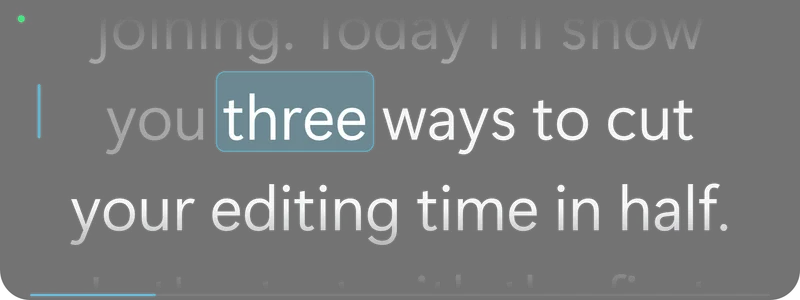
An illustration of the setup, not a screen recording. MIRAY does not click for you: you do each step when its cue comes up.
Short answer. Install MIRAY for Windows, dock its Island under your webcam and press Ctrl+Alt+Space, then record with whatever you already use: the Camera app, Clipchamp or OBS. A face-to-camera recording only holds what the camera sees, and for a screen recording MIRAY asks Windows to leave its window out of capture. Voice mode scrolls while you talk and waits when you stop. The free version reads about 300 words a session, about 2 minutes of speech, which covers a Short or a hook; a longer video needs the one-time upgrade.
Where reading a script on camera goes wrong
A script helps until its placement or its pace gets in the way. These three show up in the final cut.
Your eyes drift to the notes
A script in another window or on a second monitor pulls your gaze sideways. In the video it reads as looking past the viewer.
The script ends up in the recording
Record a screen tutorial with your notes open and they are in the file. You find out in the edit, after the take is gone.
A fixed scroll fights your delivery
Text on a timer keeps moving when you stumble or ad-lib, so you rush to catch up or stall until it returns.
Five minutes before your next recording
- Install MIRAY from the Microsoft Store: Windows 10 version 2004 or later, or Windows 11, about 184 MB. No account.
- Bring in the script. Paste it with Ctrl+Alt+V, or open a file with Ctrl+O: Word, PDF, Markdown, text, or the speaker notes of a deck. Write the way you talk.
- Add the beats. Put
[pause]or[pause 2s]where you want a breath: Classic mode holds there. A line such as[Open Export]is a cue that shows on screen but is not spoken. - Fit it to the video. Fit to a length picks the reading speed for a 1 to 30 minute video, pauses included.
- Dock the Island under the webcam (Ctrl+Alt+F switches between docked and floating), pick Voice, open your recorder and press Ctrl+Alt+Space. A 3-second countdown gives you time to settle.
Import formats and markup are covered on the import page; the three layouts on the Island and Ghost page.
Which kind of video, and what changes
The recorder decides what the prompter has to do. Pick the kind of video you make, and how many screens you have.
What you are recording
Your screens
Your recorder captures the camera, not the screen
When you record only your webcam, the file holds what the camera sees, so a script on your screen is not in it. What matters is where the script sits and how it moves.
Dock the Island under the webcam so your eyes stay near the lens, and use Voice so the text waits when you stumble. MIRAY does not record: the Camera app, Clipchamp, OBS or any recorder does that.
One screen: dock the Island at the top, under the webcam. For a screen tutorial, Ghost lets you click straight through it to the app underneath.
Two screens: keep MIRAY on the screen with the webcam and record the other one. Hiding is your backup if you drag a window across.
Read while the recorder captures your screen
In OBS or another screen recorder, MIRAY asks Windows to leave its window out of the picture. That is on by default and free, and the Store listing names OBS among the apps it is hidden from.
Recorders differ in how they capture, so run the 60-second test below with your own recorder once, then record with confidence.
One screen: dock the Island at the top, under the webcam. For a screen tutorial, Ghost lets you click straight through it to the app underneath.
Two screens: keep MIRAY on the screen with the webcam and record the other one. Hiding is your backup if you drag a window across.
A scene mixes sources, so check the scene you will use
A scene can hold your display, a window and your webcam. The webcam source carries only the camera feed, so the prompter is not in it. For a display source MIRAY relies on the same Windows setting as above.
Capture methods can honour that setting differently, so record ten seconds of the real scene and play it back before the real take. The same goes for a live stream: check before you go live.
One screen: dock the Island at the top, under the webcam. For a screen tutorial, Ghost lets you click straight through it to the app underneath.
Two screens: keep MIRAY on the screen with the webcam and record the other one. Hiding is your backup if you drag a window across.
Voice listens; your recorder records
Voice mode listens through your microphone to move the script along. It never stores or sends that audio, and your recorder captures your voice separately.
Record ten seconds with Voice running and play it back to be sure your recorder still hears you. If it does not, switch to Classic, which scrolls at a steady speed without listening.
One screen: dock the Island at the top, under the webcam. For a screen tutorial, Ghost lets you click straight through it to the app underneath.
Two screens: keep MIRAY on the screen with the webcam and record the other one. Hiding is your backup if you drag a window across.
In a remote session the prompter shows
Hiding a window in a remote session would hide it from you as well, so MIRAY shows it normally there and tells you once. A recording of that session includes it.
Record from the PC you are sitting at, or keep the script on a second display that the recorder does not capture.
One screen: dock the Island at the top, under the webcam. For a screen tutorial, Ghost lets you click straight through it to the app underneath.
Two screens: keep MIRAY on the screen with the webcam and record the other one. Hiding is your backup if you drag a window across.
| What you record | The prompter | What to know |
|---|---|---|
| Face to camera | Hiding is a bonus here | Your recorder captures the camera, not the screen |
| Screen tutorial | Built for this | Read while the recorder captures your screen |
| Webcam plus screen (OBS scene) | Test the exact scene | A scene mixes sources, so check the scene you will use |
| Voice-over | Check your audio once | Voice listens; your recorder records |
| Recording a Remote Desktop session | Visible, by design | In a remote session the prompter shows |
One screen: dock the Island at the top, under the webcam. For a screen tutorial, Ghost lets you click straight through it to the app underneath. Two screens: keep MIRAY on the screen with the webcam and record the other one. Hiding is your backup if you drag a window across. Hiding is a Windows capture setting, not a security feature: it does not stop a phone pointed at your monitor.
How long is your video, and how much is free
Free reads about 300 words a session. Pick your video length to see where it lands.
Length of the video
| Video length | Script at 140 words a minute | Against a free session |
|---|---|---|
| 1 minute | About 140 words | Fits one free session |
| 2 minutes | About 280 words | Fits one free session |
| 3 minutes | About 420 words | About 1.4 times a free session |
| 5 minutes | About 700 words | About 2.3 times a free session |
| 7 minutes | About 980 words | About 3.3 times a free session |
| 10 minutes | About 1400 words | About 4.7 times a free session |
| 15 minutes | About 2100 words | About 7 times a free session |
140 words a minute is MIRAY’s default Classic speed; you can run it from 60 to 300. A script with long pauses or a slow delivery holds fewer words. Free covers a Short or a hook. For longer videos use the one-time upgrade, or the free web teleprompter when no screen is being recorded.
What you press at each moment of a take
Every key below is a global shortcut, so it works while your recorder has the focus. You can change any of them in MIRAY’s settings.
| Moment | In MIRAY | Key | Free |
|---|---|---|---|
| Before you press record | Dock the Island under the webcam | Ctrl+Alt+F | Yes |
| The first line | Start reading (after a 3-second countdown by default) | Ctrl+Alt+Space | About 300 words a session |
| You stumble or ad-lib | Voice waits while you are silent; pause it outright if you prefer | Ctrl+Alt+Space | Yes |
| You want the line again | Back a line, or let Follow find your place after a skip | Ctrl+Alt+← | Follow: 3 sessions a week |
| A beat for effect | Write [pause 2s] in the script; Classic holds there | No key | Yes |
| Too fast, too slow | Speed up or slow down the pace | Ctrl+Alt+↑ / ↓ | Yes |
| Clicking the app under it | Ghost: see-through and click-through | Ctrl+Alt+G | Yes |
| Cut | Stop reading | Ctrl+Alt+X | Yes |
How Voice and Follow differ, and the 11 Follow languages (English built in, the others after a one-time pack download), are on the Voice and Follow page. Retaking the same script within 10 minutes does not count as a new Follow session.
Other ways to read a script on camera
You may not need an app. Here is how each common option does for a creator with a script.
| Option | Where the script sits | Moves with your voice | The catch |
|---|---|---|---|
| Clipchamp webcam recorder | Inside the recorder | Not described by Microsoft | Microsoft lists the teleprompter for work or school accounts; webcam recordings stop at 30 minutes |
| Elgato Virtual Prompter | A docked strip under the camera | Yes (Voice Sync, per Elgato) | Docked is free; the floating window needs the paid version |
| A teleprompter in a browser tab, ours included | A tab you place near the camera | Our web teleprompter: yes, voice-paced | Shows in a whole-screen recording |
| Notes on paper or a second monitor | To the side | No | Your eyes leave the lens |
| MIRAY for Windows | Docked under the webcam | Yes: Voice, and Follow | Windows only; does not record; free covers about 300 words a session |
Sources: Microsoft Support, “How to record a webcam video” (Clipchamp), and Elgato’s Virtual Prompter page, checked November 29, 2026. If you make short face-to-camera clips and a browser tab beside the lens is enough, the free web teleprompter covers it.
Test it in 60 seconds, with your recorder
Do this if your video includes your screen. Check what the file holds on your own PC, with your own recorder. Do not take our word for it.
- Open MIRAY with a script and press Ctrl+Alt+Space so the script is on your screen.
- Start your recorder (OBS, or the one you use) on your whole screen, with the scene you plan to use, and record ten seconds.
- Play the clip back. The prompter should have been on your monitor and be missing from the file.
- If it shows, check you are on Windows 10 version 2004 or later and not in a remote session, then try another capture source in your recorder.
For a webcam-only video, record ten seconds in Voice mode and check your voice was captured. The general version of this test, and what to do next, is on the hidden-from-capture page and the support page.
Your video and your voice, without the script
| On your PC | In the recording |
|---|---|
| MIRAY’s Island, Float or Ghost reader | Left out of a screen capture |
| MIRAY’s Studio window | Left out of a screen capture |
| Your tutorial, browser or app | Recorded as usual |
| Your webcam video | Recorded by your recorder; MIRAY does not use the camera |
| Your voice | Recorded by your recorder; MIRAY listens in Voice mode but stores and sends nothing |
| Pop-up notifications | Recorded as usual: turn them off first |
The usual questions, answered
Does it record?
No. MIRAY shows your script and moves it. The Camera app, Clipchamp, OBS or any recorder you already use does the recording.
Does it take my camera?
No. MIRAY does not use the camera at all, so your recorder keeps it. Voice mode uses the microphone only to move the script, and audio is never stored or sent.
Other languages
Voice follows speech in any spoken language. Follow, the word-by-word tracker, supports 11 languages: English is built in, and the others need a one-time pack download, then work offline.
Live streams
A stream through OBS captures the way a recording does. Record ten seconds of your exact scene as in the test above, then go live.
Where MIRAY is not the answer
Free covers a hook, not a video
Free reads about 300 words a session. A 5-minute video at 140 words a minute is about 700 words, so most videos need the one-time upgrade.
It does not record
MIRAY is a prompter. If you want one app that records and prompts, a recorder with its own teleprompter, such as Clipchamp for work or school accounts, does both.
Remote Desktop shows it
Record a remote session and the prompter is visible in the file. Record from the PC in front of you.
Close to the lens, not in it
The Island sits right under the webcam, so your eyes are near the lens, not on it. Keep it short and wide for the smallest gaze shift.
Capture sources differ
Recorders and OBS sources do not all handle the Windows capture setting the same way. Test the scene you will use.
Windows only
There is no Mac or phone app. On those, use our free web teleprompter in a browser tab.
What a creator gets free
| Feature | Free | One-time upgrade |
|---|---|---|
| Hidden from screen recordings | Included, on by default | Included |
| Island under the webcam, Float, Ghost | Included | Included |
| Classic and Voice reading | About 300 words a session (about 2 minutes) | No length limit |
| Script import and Fit to a length | Included (one script of your own) | Unlimited scripts, in folders |
| Follow on your own script | 3 sessions a week | Every time |
Free: Classic and Voice scrolling for about 300 words a session (about 2 minutes), one script of your own, Island, Float and Ghost, hidden from screen share, every import format, and Follow 3 sessions a week. The upgrade is a one-time $19.99 (US price; local prices vary), no subscription: unlimited length, unlimited scripts, Follow every time. The buy page has the full comparison.
YouTube creator questions
What is a free teleprompter for YouTube creators on Windows?
Yes, several. Elgato’s Virtual Prompter has a free docked mode that sits under the camera, with the floating window on its paid plan (Elgato’s page, November 29, 2026). Browser teleprompters need no install. MIRAY is a Windows app that docks under your webcam and scrolls as you speak; it is free for about 300 words a session. The web teleprompter on our home page is free with no word limit.
Does MIRAY record my video?
No. MIRAY shows your script and moves it; it does not record video or audio and does not use the camera. Record with the Windows Camera app, Clipchamp, OBS or any recorder you already use.
Will the script appear in my video?
Not in a webcam-only recording: that file holds what the camera sees, not your screen. If you also record your screen, MIRAY asks Windows to leave its window out of capture, on Windows 10 version 2004 or later and outside a remote session. Run the 60-second test with your own recorder once.
How long a video can I read for free?
Free reads about 300 words a session, about 2 minutes of speech at the default speed. That covers a Short, a hook or an intro. A 5-minute video is about 700 words at 140 words a minute, so a longer video needs the one-time upgrade. Use the length planner to see where yours lands.
Can I read a script while screen recording?
Yes, that is what the hiding is for. Dock MIRAY under your webcam, start your screen recorder, and the prompter stays on your monitor and out of the file. Check it once with a ten-second clip, because recorders differ in how they capture.
Does it work with OBS?
The Microsoft Store listing says MIRAY is hidden from screen sharing and recordings in Zoom, Teams, Meet and OBS. A scene can mix several sources, so record ten seconds of the exact scene you plan to use, and do the same before a live stream.
Can I use it in a language other than English?
Voice mode moves the script as you speak in any spoken language. Follow, which tracks your place word by word, understands 11 languages: English is built in and the others need a one-time language pack download, after which speech is recognized offline on your PC.
Is it free?
MIRAY is free to start: Classic and Voice read about 300 words a session (about 2 minutes of speech), and hiding from the recording is free. The one-time upgrade removes the length limit. The web teleprompter on our home page is free with no word limit, but a browser tab shows in a whole-screen recording.
Look at the lens, not at your notes
Install MIRAY, paste your script, dock it under the webcam and run the 60-second test with your recorder. Free to start, no account.
Windows 10 version 2004 or later, and Windows 11. About 184 MB. The web version cannot hide from a whole-screen recording.
- Hidden from screen shareHow it works, and every limit.
- Island and Ghost modeUnder your webcam, or see-through.
- Voice and FollowA script that moves when you speak.
- Import and presetsWord, PDF, Markdown and deck notes.
Competitor facts (Clipchamp, Elgato) come from their official pages, checked November 29, 2026; check their current pages too. YouTube, OBS, Clipchamp and Elgato are trademarks of their owners, and MIRAY is not affiliated with them. Creator Kit makes MIRAY.