
Teleprompter for Zoom Presentations
Read your talk under the webcam while Zoom shares your slides, not your script.
Your monitor
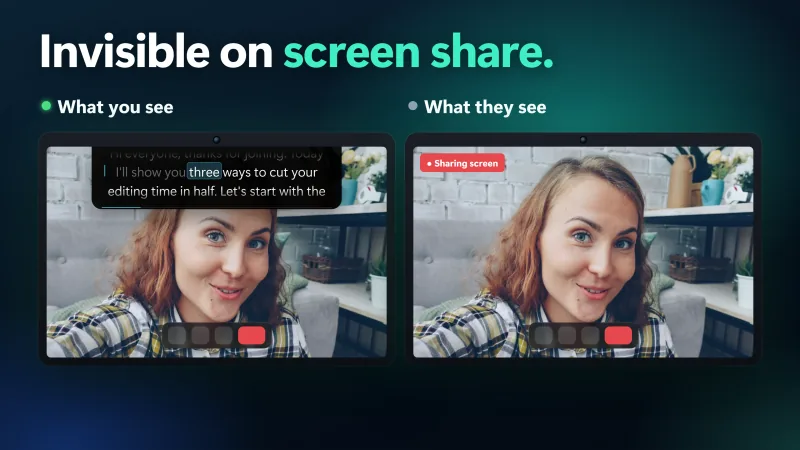
The prompter sits under the webcam. Only you see it.
An illustration of the setup, not a screen recording. MIRAY does not change your slides: you do, when the cue comes up.
Short answer. Install MIRAY for Windows, dock its Island under your webcam and share your entire screen in Zoom: the call gets your slides and your face, and the prompter stays on your monitor, because MIRAY asks Windows to leave its window out of screen capture. Voice mode scrolls while you talk and waits while you answer a question. The free version reads about 300 words a session, about 2 minutes of speech, which covers an opening; a full talk needs the one-time upgrade.
Where reading a script on Zoom goes wrong
Most presenters keep notes somewhere. On a call, each usual place costs you something the audience notices.
The notes end up in the share
Share your whole screen with a notes document open and every attendee can read it. People find out halfway through the talk, from the chat.
Your eyes leave the lens
Notes on a second monitor or on paper pull your gaze sideways or down. On a webcam, that reads as looking away from the people you are talking to.
A question breaks the flow
A scroller on a timer keeps moving while you answer someone. When you come back, the line you were on is gone and you hunt for it on camera.
Five minutes before your next Zoom call
- Install MIRAY from the Microsoft Store: Windows 10 version 2004 or later, or Windows 11, about 184 MB. No account.
- Bring in the script. Paste it with Ctrl+Alt+V, or open your deck with Ctrl+O to read its speaker notes. Word, PDF, Markdown and text files work too.
- Fit it to your slot. Fit to a length picks the reading speed for a slot of 1 to 30 minutes, pauses included.
- Dock the Island at the top of the screen with the webcam. Ctrl+Alt+F switches between docked and floating.
- Share your entire screen in Zoom and press Ctrl+Alt+Space to start. Pick Voice so the script waits when you stop talking.
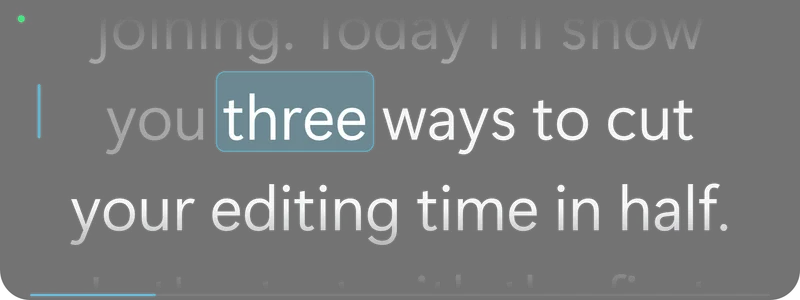
The import, markup and size presets are covered on the import page; the three layouts on the Island and Ghost page.
Which Zoom share option, and what changes
Zoom gives you several ways to share. Pick yours, and how many screens you have, to see what reaches the call and how to place MIRAY.
How you share in Zoom
Your screens
Share the whole screen and keep reading
In Zoom, click Share Screen and pick your screen, not a window. MIRAY asks Windows to leave its window out of the picture, so the call gets your slides and your desktop without the prompter.
This is the setup to use when you switch between apps during the talk: slides, a browser, a demo.
One screen: dock the Island at the top, under the webcam, and use Ghost to click through it to the slide underneath.
Two screens: put MIRAY on the screen with the webcam and share the other one. The call never sees the unshared screen, so hiding is your backup if you switch to sharing the first.
Zoom already sends only that window
When you share a single application window, Zoom shares that window and nothing else, so no other window, MIRAY included, reaches the call.
MIRAY still earns its place for the reading itself: the Island under the webcam keeps your eyes near the lens, and Voice waits while you take a question. The free web teleprompter works here too, since a tab outside the shared window is not sent.
One screen: dock the Island at the top, under the webcam, and use Ghost to click through it to the slide underneath.
Two screens: put MIRAY on the screen with the webcam and share the other one. The call never sees the unshared screen, so hiding is your backup if you switch to sharing the first.
Zoom shares what is inside the green frame
Zoom’s share panel has a portion-of-screen option: a resizable frame, and only what is inside it is shared. Anything outside the frame stays with you.
If the frame covers the top of your screen, the Island sits inside it and is still left out, because MIRAY is excluded from capture wherever it is.
One screen: dock the Island at the top, under the webcam, and use Ghost to click through it to the slide underneath.
Two screens: put MIRAY on the screen with the webcam and share the other one. The call never sees the unshared screen, so hiding is your backup if you switch to sharing the first.
Your video sits over your slides
Zoom’s slides-as-background mode starts from the Share Screen panel and needs PowerPoint installed on your PC. Attendees on the web client or a Zoom Room see a normal screen share instead.
MIRAY is not part of what Zoom sends, so read from the Island as usual. Import the deck’s speaker notes first so the script follows your slide order.
One screen: dock the Island at the top, under the webcam, and use Ghost to click through it to the slide underneath.
Two screens: put MIRAY on the screen with the webcam and share the other one. The call never sees the unshared screen, so hiding is your backup if you switch to sharing the first.
In a remote session the prompter shows
Hiding a window in a remote session would hide it from you as well, so MIRAY shows it normally there and tells you once. A whole-screen share from that session includes it.
Present from the PC you are sitting at, or share one window and keep the script in another.
One screen: dock the Island at the top, under the webcam, and use Ghost to click through it to the slide underneath.
Two screens: put MIRAY on the screen with the webcam and share the other one. The call never sees the unshared screen, so hiding is your backup if you switch to sharing the first.
| How you share | MIRAY in the share | What reaches the call |
|---|---|---|
| Entire screen | Built for this | Share the whole screen and keep reading |
| One window (PowerPoint, a browser) | Hiding is a bonus here | Zoom already sends only that window |
| Portion of screen | Hidden inside or outside the frame | Zoom shares what is inside the green frame |
| Slides as a virtual background | Works, with Zoom’s own rules | Your video sits over your slides |
| From a Remote Desktop session | Visible, by design | In a remote session the prompter shows |
One screen: dock the Island at the top, under the webcam, and use Ghost to click through it to the slide underneath. Two screens: put MIRAY on the screen with the webcam and share the other one. The call never sees the unshared screen, so hiding is your backup if you switch to sharing the first. Zoom’s share options as its support pages described them on November 29, 2026; an account admin can turn some of them off.
What you press at each moment of the talk
Every key below is a global shortcut, so it works while Zoom has the focus. You can change any of them in MIRAY’s settings.
| Moment | In MIRAY | Key | Free |
|---|---|---|---|
| Joining, a minute early | Dock the Island under the webcam | Ctrl+Alt+F | Yes |
| “Can everyone see my screen?” | Share the entire screen; hiding is already on | No key | Yes |
| The first words | Start reading (after a 3-second countdown by default) | Ctrl+Alt+Space | About 300 words a session |
| A question in the middle | Voice waits while you are silent; pause it outright if you prefer | Ctrl+Alt+Space | Yes |
| You lost your place | Back a line, or let Follow find your place after a skip | Ctrl+Alt+← | Follow: 3 sessions a week |
| Running long | Speed up or slow down the pace | Ctrl+Alt+↑ / ↓ | Yes |
| Clicking the slide under the prompter | Ghost: see-through and click-through | Ctrl+Alt+G | Yes |
| Thank you, questions? | Stop reading | Ctrl+Alt+X | Yes |
How Voice and Follow differ, and the 11 Follow languages (English built in, the others after a one-time pack download), are on the Voice and Follow page.
Zoom’s built-in options, and where MIRAY fits
You may not need an app. Here is what each free option does for a presenter with a script.
| Option | Script kept out of the call | You read near the lens | Moves with your voice |
|---|---|---|---|
| Zoom: share one window | Yes, other windows are not sent | Only if you place the notes there | No |
| Zoom: portion of screen | Yes, outside the frame | Only if you place the notes there | No |
| Notes on a second monitor | Yes, when you share the other screen | No, you look sideways | No |
| A teleprompter in a browser tab, ours included | Not in a whole-screen share | Yes, under the webcam | Our web teleprompter: yes, voice-paced |
| MIRAY for Windows | Yes, even in a whole-screen share (not over Remote Desktop) | Yes, docked under the webcam | Yes: Voice, and Follow |
Zoom does not share its own meeting window and controls by default, and its slides-as-background mode needs PowerPoint installed (Keynote on a Mac). Sources: Zoom Support, “Showing Zoom windows during screen share”, “Sharing slides as a Virtual Background” and “Zoom screen sharing security”, checked November 29, 2026. If your whole talk is one PowerPoint window and you are fine reading from the side, Zoom’s one-window share and the free web teleprompter cover it.
Test it in 60 seconds, in Zoom
Check what attendees get on your own PC, with your own Zoom. Do not take our word for it.
- Start a Zoom meeting on your own.
- Open MIRAY with a script and press Ctrl+Alt+Space.
- Share Screen, then pick your screen, not a single window.
- Join the same meeting from your phone, or record ten seconds on this computer and play it back. The prompter should be on your monitor and missing from the call.
Still showing? Check that you are on Windows 10 version 2004 or later and not in a remote session. The general version of this test, and what to do next, is on the screen-share page and the support page.
Your slides and your face, without the script
| On your PC | In the Zoom share |
|---|---|
| MIRAY’s Island, Float or Ghost reader | Left out |
| MIRAY’s Studio window | Left out |
| Your slides, browser or demo app | Shared as usual |
| Your webcam video | Sent as usual; MIRAY does not use the camera |
| Pop-up notifications | Shared as usual: turn them off first |
The usual questions, answered
A company laptop
MIRAY installs from the Microsoft Store and needs no account. Apart from the Microsoft Store itself, it goes online only to download a Follow language pack, and speech is recognized on the PC; audio is never stored or sent.
Webinars and recordings
A Zoom webinar shares your screen the same way a meeting does. MIRAY records nothing itself. Check a short recording of your own once, as in the test above.
A presentation clicker
Clickers send Page Down and Page Up. With MIRAY’s Presentation clicker setting on, those move the script while it reads and do not reach PowerPoint. It is off by default, so your clicker keeps changing slides.
Teams and Google Meet too
The same setup works there: share the entire screen and the prompter stays out. The Store listing names Zoom, Teams, Meet and OBS. Run the test in each app you use.
Where MIRAY is not the answer
Free covers an opening, not a talk
Free reads about 300 words a session. A 10-minute talk at 140 words a minute is about 1,400 words, so a full presentation needs the one-time upgrade.
Remote Desktop shows it
Present from a remote session and the prompter is visible in the share. Present from the PC in front of you.
Your slides are yours to move
MIRAY reads the speaker notes once and marks each slide with a cue. It does not change slides or follow PowerPoint as you click.
Close to the lens, not in it
The Island sits right under the webcam, so your eyes are near the lens, not on it. Keep it short and wide for the smallest gaze shift.
A camera still sees the screen
A phone pointed at your monitor shows everything on it. The hiding is a Windows capture setting, not a security feature.
Windows only
There is no Mac or phone app. On a Mac, use Zoom’s one-window share with notes in another window, or our free web teleprompter.
What a Zoom presenter gets free
| Feature | Free | One-time upgrade |
|---|---|---|
| Hidden from the Zoom share | Included, on by default | Included |
| Island under the webcam, Float, Ghost | Included | Included |
| Classic and Voice reading | About 300 words a session (about 2 minutes) | No length limit |
| Speaker-notes import | Included (one script of your own) | Unlimited scripts, in folders |
| Follow on your own script | 3 sessions a week | Every time |
Free: Classic and Voice scrolling for about 300 words a session (about 2 minutes), one script of your own, Island, Float and Ghost, hidden from screen share, every import format, and Follow 3 sessions a week. The upgrade is a one-time $19.99 (US price; local prices vary), no subscription: unlimited length, unlimited scripts, Follow every time. The buy page has the full comparison.
Step-by-step guides for calls
- Teleprompter for ZoomFour setups compared, hardware included.
- See your notes while sharing in ZoomEvery way to keep notes private on a call.
- PowerPoint notes on one monitorRead speaker notes without Presenter View.
- Teleprompter for TeamsThe same setup in Microsoft Teams.
- Teleprompter for Google MeetMeet in the browser, with MIRAY beside it.
Zoom presentation questions
Does Zoom have a built-in teleprompter?
We found no teleprompter feature on Zoom’s support site when we checked on November 29, 2026. The Zoom App Marketplace lists third-party teleprompter apps that run inside a meeting; check each listing for its price and platforms. MIRAY runs on Windows next to Zoom and needs nothing installed in Zoom.
Will attendees see my script if I share my entire screen?
Not with MIRAY on Windows 10 version 2004 or later, outside a remote session: it asks Windows to leave its window out of screen capture, and that is on by default. A normal notes window would show. Run the 60-second Zoom test once to see it for yourself.
Should I share my screen or one window in Zoom?
Share one window when the whole talk lives in one app, such as a PowerPoint slide show: only that window reaches the call. Share the entire screen when you switch between apps. MIRAY stays out of the share either way.
Can I read my PowerPoint speaker notes on Zoom with one monitor?
Yes. Import the .pptx into MIRAY and it reads the speaker notes in slide order, each slide marked with a cue such as [Slide 2], then dock the Island under your webcam. MIRAY does not change your slides: you advance them yourself, and the notes are read once, so import again after you edit them.
Does it work in Zoom webinars and recordings?
A webinar shares your screen the same way a meeting does. The Microsoft Store listing says MIRAY is hidden from screen sharing and recordings in Zoom, Teams, Meet and OBS. Make a ten-second local recording and play it back to check your own setup.
Is it free?
MIRAY is free to start: Classic and Voice read about 300 words a session (about 2 minutes of speech), and hiding from the share is free. A full talk is longer than that, so the one-time upgrade removes the length limit. The web teleprompter on our home page is free with no word limit, but a browser tab shows in a whole-screen share.
Can I use a presentation clicker?
Yes. A clicker sends Page Down and Page Up. With MIRAY’s Presentation clicker setting on, those keys move the script 12 words while it reads, and PowerPoint does not get them at that time. Leave the setting off if your clicker should change slides.
Do attendees need to install anything?
No. Everything happens on your PC. Attendees join Zoom as usual, on any device, and see your shared screen without the prompter.
Present to the camera, not to your notes
Install MIRAY, paste your talk, dock it under the webcam and run the 60-second test in Zoom. Free to start, no account.
Windows 10 version 2004 or later, and Windows 11. About 184 MB. The web version cannot hide from a whole-screen share.
- Hidden from screen shareHow it works, and every limit.
- Island and Ghost modeUnder your webcam, or see-through.
- Voice and FollowA script that moves when you speak.
- Import and presetsPowerPoint notes, Word and PDF.
Zoom behaviour comes from Zoom’s own support pages, checked November 29, 2026; Zoom changes its menus often, so check its current help too. Zoom is a trademark of its owner, and MIRAY is not affiliated with Zoom. Creator Kit makes MIRAY.